


Experiencing the error where Instagram can’t save video is a common issue faced by many users. To fix it, the first step is to identify the cause and then apply the right solution. In this article, App Video Download Free compiles the most frequent reasons behind the problem and provides detailed steps to help you resolve it quickly and effectively.
Why can’t Instagram save videos?
Here are some common reasons why Instagram may fail to save videos and how you can fix them:
Device storage is full
If your phone is running out of space, the Instagram app won’t be able to download or save videos. To fix this, free up storage by deleting unnecessary files, clearing downloads, or uninstalling unused apps.
Incorrect saving actions
Sometimes videos don’t get saved simply because the saving steps weren’t done correctly. Double-check that you’ve tapped the “Save” button and waited for the download to finish before exiting the app.
>>> See more: 10+ Simple ways to how to download Instagram videos with music
Instagram app errors
The version of Instagram on your phone may have temporary glitches. Restarting the app, restarting your phone, or updating Instagram to the latest version often solves these problems.
Software conflicts
Other apps installed on your device may conflict with Instagram, causing performance issues including preventing videos from being saved. Try closing background apps or uninstalling recently added ones if the issue persists.
Cache is full
During usage, Instagram stores a large amount of temporary data (cache) to improve loading speed. However, if this cache becomes too full or encounters errors, it can prevent new videos from being saved. Clearing Instagram’s cache is often an effective solution.
Permissions not granted
For Instagram to save videos to your photo library, the app must have the necessary permissions. If you accidentally disabled or denied this permission, videos won’t be saved to your device. You’ll need to go to your phone’s settings and re-enable access permissions for Instagram.
>>> See more: 10+ ways how to download instagram videos to phone

How to fix Instagram not saving videos and photos
Below are several effective solutions to resolve the issue of Instagram not saving videos or photos. It’s best to try them step by step, starting with the simplest methods before moving on to more advanced fixes.
Restart your device
Restarting your phone is one of the quickest and most effective ways to fix common software-related issues. For the error where Instagram can’t save videos or photos, restarting helps refresh the system, free up RAM, and clear temporary glitches that may be affecting the app.
After restarting, open Instagram again and try saving the video or photo to see if the problem is resolved.
Delete and reinstall the App
If restarting your phone doesn’t fix the problem, try uninstalling and reinstalling the Instagram app. This process gives you a clean, updated version of the app and removes any corrupted files or faulty data that could be causing errors.
Tip: Before deleting the app, make sure you remember your login credentials so you can easily sign back in after reinstalling.
>>> See more: Chinese TikTok video downloader – Free & No watermark tool
Delete Videos and Photos from Your Gallery
A full phone memory is one of the most common reasons behind Instagram’s video-saving error. The app requires free storage space to download and process new files. To fix this, delete unnecessary videos, photos, or unused applications to free up space on your device.
Clear Instagram’s data and cache
The cache is where an application stores temporary data for faster loading. However, if the cache is too large or corrupted, it can cause various issues. You can go into the app settings on your phone (for Android) to clear Instagram’s data and cache. This action will not delete your account but can help fix the error.
Update to the latest version of the app
Older versions of Instagram often contain bugs or compatibility issues that developers have already fixed in newer updates. Regularly updating the app not only helps you avoid errors like videos not saving but also gives you access to the latest features and security patches. Check the App Store (iOS) or Google Play Store (Android) to make sure your Instagram is up to date.
>>> See more: How to download Douyin videos without watermark on PC, iPhone
Use online tools to download Instagram videos when an error occurs
If the problem persists, you can rely on online tools as a quick workaround. These platforms let you download Instagram videos without needing the app. Simply copy the video link, paste it into the tool, and save it directly to your device. Some popular options include: SnapInsta, SaveFrom, and SSSInstagram.
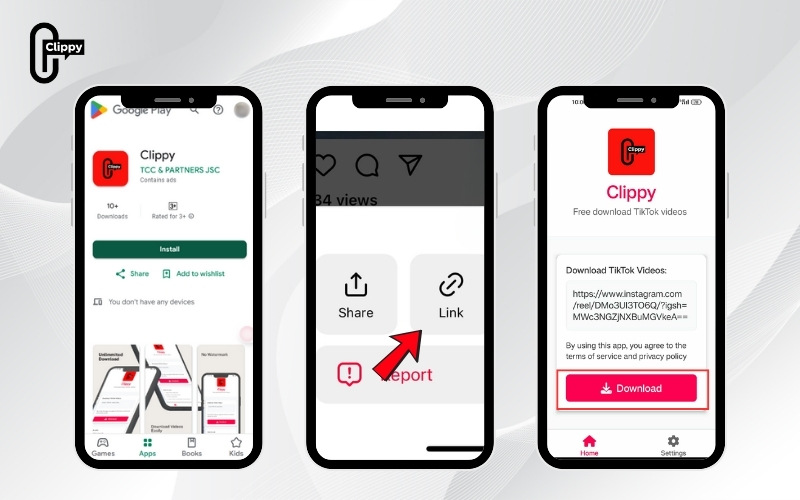
Besides its web tool, the Clippy app is also available on both Google Play (Android) and the App Store (iOS). With just one tap, Clippy lets you download Instagram videos without watermarks completely free, ad-free, fast, and in HD quality, giving you a smooth and safe experience right on your phone.
How to use Clippy:
- Step 1: Download Clippy from Google Play (Android) or the App Store (iOS).
- Step 2: Copy the video link from Instagram.
- Step 3: Open Clippy and paste the link.
- Step 4: Download the video instantly.
With these tips and the help of Clippy, you now have everything you need to fix the “Instagram not saving videos” error. By keeping your app updated, freeing up storage, and using reliable video download tools, you can enjoy a smoother Instagram experience and easily save every important moment.
Download Clippy today to make saving Instagram videos faster and easier than ever.
