


Watching YouTube has become a daily habit for millions of users, but a weak connection or sudden disconnection can quickly ruin the experience. That’s why many people search for how to download YouTube videos to phone for offline viewing. In this guide, you’ll discover simple and effective methods to save your favorite YouTube videos directly to your device, so you can enjoy them anytime, anywhere without relying on the internet with App Video Download Free.
How to download YouTube videos to your phone using dedicated apps
In addition to online tools, using dedicated mobile applications is another effective way to download YouTube videos to your phone. These apps often provide more features, such as selecting video quality, managing downloaded files, and even offline playback.
Below is a detailed guide to some of the most popular apps available for both Android and iOS:
How to download YouTube videos to your phone with Clippy
With Clippy, downloading YouTube videos to your phone becomes easier than ever. The app supports both iOS and Android, allowing you to save high-quality videos with just one tap, ad-free and completely free of charge.
- Step 1: Copy the link of the YouTube video you want to download.
- Step 2: Paste the link into the input field in the Clippy app.
- Step 3: Tap the Download button to start the download process.
- Step 4: The video will be saved directly to your device without a watermark.
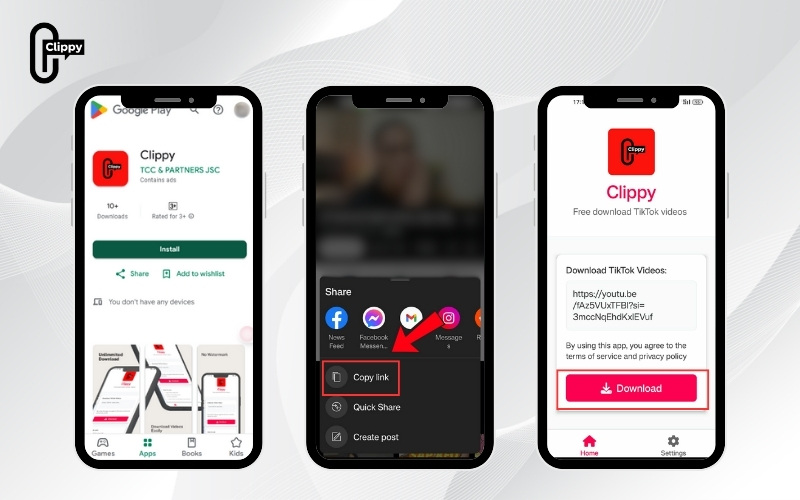
After following these simple steps, your video will be saved directly to your phone in high quality and without any watermark. To make the process even easier next time, just keep the Clippy app on your device, just one tap is all it takes to download unlimited videos from YouTube, TikTok, Facebook, or Douyin. Download Clippy today and enjoy seamless video saving anytime.
How to download a YouTube video to your phone using YT3
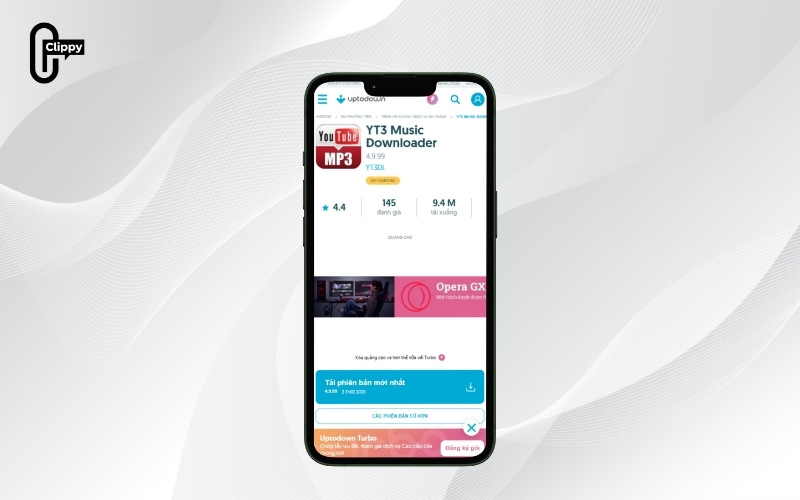
YT3 is a dedicated Android app for downloading YouTube videos, allowing users to search and save videos with just a few taps. Here’s how to do it:
- Step 1: Go to Google Play Store, search for the YT3 app, and install it on your phone.
- Step 2: Open the app and type the name of the video you want to download into the search bar.
- Step 3: The app will display a list of matching results. Simply choose your desired video and tap the download icon (usually an arrow or a music symbol) to start downloading.
How to download 4K YouTube videos to your phone using SnapTube
With the SnapTube app, you can download YouTube videos to your Android phone in multiple quality options, including 4K. Here’s how to download 4K YouTube videos using SnapTube:
- Step 1: Download and install the SnapTube app on your phone before starting.
- Step 2: Open SnapTube, type the name of the video into the search bar, and tap the download arrow icon next to the video.
- Step 3: Select your preferred quality (e.g., 4K, HD, SD) and press Download.
- Step 4: The downloaded video will appear in the app’s Downloads section. Open SnapTube and go to Album to view your saved videos.
>>> See more: How to download short YouTube videos fast, free, and easy
How to download YouTube videos to your phone using Jungle
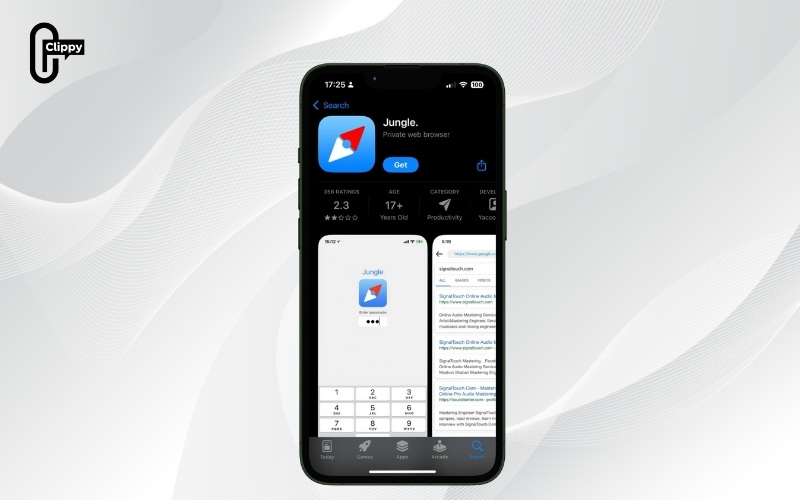
If you’re using an iPhone or iPad, Jungle is a handy app that makes downloading YouTube videos simple. Here’s how to download YouTube videos with Jungle:
- Step 1: Go to the App Store, search for Jungle, and install the app on your device.
- Step 2: Open the YouTube app, choose the video you want to download, then tap Share and select Copy link.
- Step 3: Launch Jungle, paste the copied link into the URL field, and tap the Download icon to save the video.
- Step 4: The downloaded video will appear in Jungle’s Downloads section. You can open the app and check your Album to watch saved videos anytime.
How to download YouTube videos to your phone using YouTube Vanced
YouTube Vanced is an alternative app to the official YouTube app, offering the ability to download videos directly to your phone quickly and easily. Follow these steps:
- Step 1: Install Vanced Manager on your device to help you set up YouTube Vanced.
- Step 2: Open the YouTube Vanced app, then find and select the video you want to download.
- Step 3: Tap Download, choose your desired video quality, and press OK to start the download.
- Step 4: Go to the Library section (bottom-right corner) → select Downloaded videos to check and view your saved content.
How to download YouTube videos to your phone using TubeMate
Want to save YouTube videos directly to your phone for offline viewing? TubeMate is a convenient and user-friendly app that lets you quickly download videos in just a few steps:
- Visit the TubeMate website: Go to tubemate.net and download the APK file.
- Install the app: Enable installation from unknown sources on your phone, then proceed with installation.
- Open TubeMate: Use the search bar to find the YouTube video you’d like to download.
- Start downloading: Tap the red arrow icon, select your preferred video quality, and press Download.
- Check your video: Go to the download section to monitor progress and play your video once the download is complete.
>>> See more: The Ultimate Fix When You Can’t Download Video from YouTube
How to download YouTube videos to phone using tools
There are many tools available that make it simple to download YouTube videos to your phone in just a few easy steps. Here’s a quick guide:
How to save YouTube videos to phone with SaveFrom
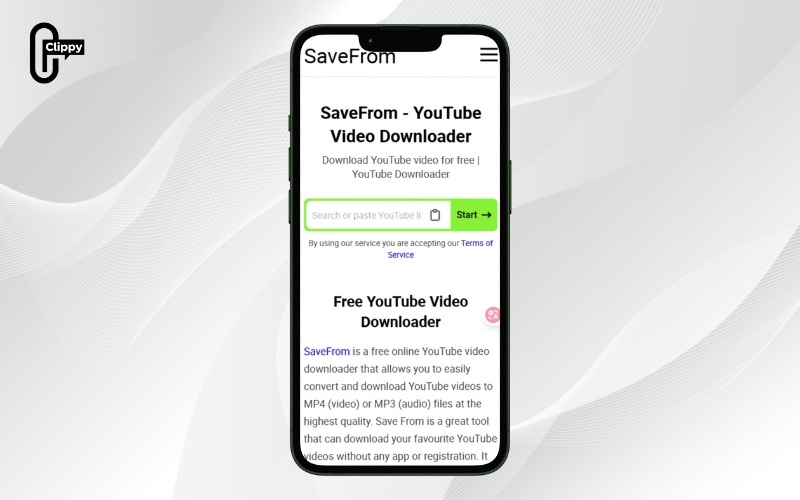
How to download YouTube videos to your phone using SaveFrom includes the following steps:
- Step 1: Open the YouTube video you want to download, tap Share, then Copy Link.
- Step 2: Open Chrome on your phone, paste the link, and add “ss” before “youtube” in the URL. Make sure it shows youtube.com instead of youtu.be.
- Step 3: The browser will redirect you to SaveFrom.net. Choose the resolution you prefer and tap Download.
- Step 4: Go to your phone’s Downloads folder to find the video and watch it anytime.
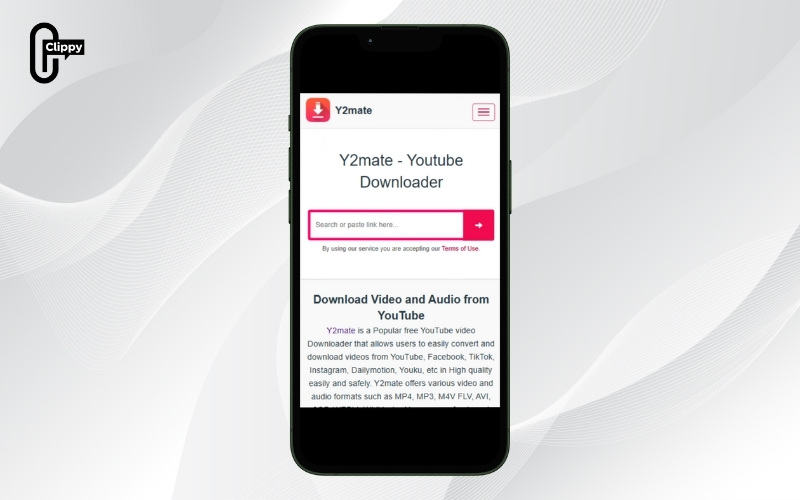
How to download YouTube videos to your phone using Y2Mate
Here are the detailed steps to download YouTube videos to your phone via Y2Mate:
- Step 1: Open the YouTube video you want to save, tap Share, and select Copy link.
- Step 2: Visit y2mate.com in your phone’s browser, paste the copied link into the search box, and select your desired video quality.
- Step 3: Tap Download .mp4, then press Download again to start the process.
- Step 4: Once finished, open your phone’s Files or Downloads folder to watch the video.
>>> See more: Best app download video from social media platforms
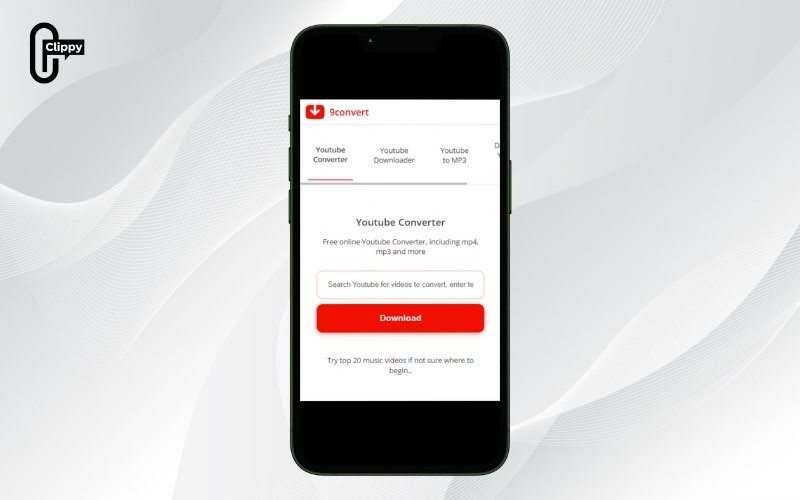
How to save YouTube videos to your phone with 9Convert
To download YouTube videos to your phone using 9Convert, follow these steps:
- Step 1: Copy the link of the YouTube video you wish to download.
- Step 2: Go to 9convert.com, paste the copied link into the search box, and click Start for the system to process it.
- Step 3: Choose your desired format and video quality, then click Download. The video will be saved in the Files or Downloads folder on your phone, ready to watch anytime.
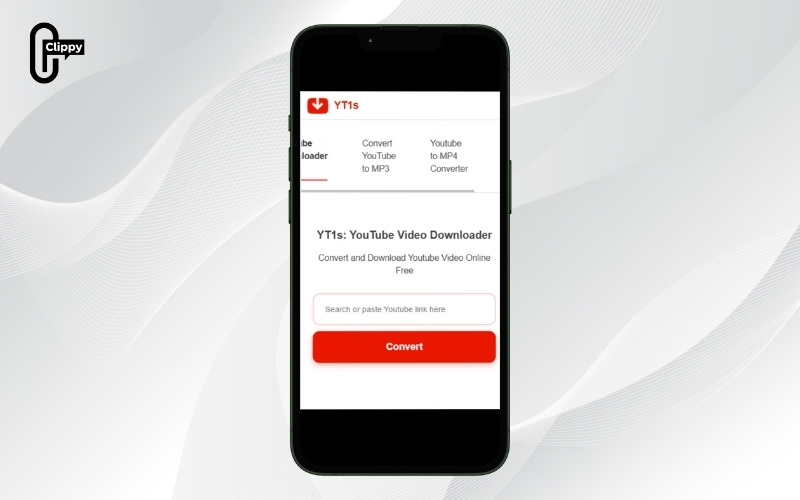
How to download YouTube videos to your gallery with YT1s
Using the YT1s online tool, you can quickly download YouTube videos to your phone in just a few simple steps:
- Step 1: Open the YouTube app, play the video you want to download, tap the Share icon, and select Copy link.
- Step 2: Launch your phone’s browser, go to yt1s.com, paste the copied URL into the search box, and tap Convert.
- Step 3: Once the system processes the link, choose your preferred format (video or audio) and quality. Then tap Get link to generate the download link.
- Step 4: Finally, press Download to save the video to your phone. It will be automatically stored in your Downloads folder.
How to download YouTube videos to your phone using Clip Converter
If you want to download YouTube videos quickly while still customizing the quality and format, Clip Converter is a great choice. This tool is completely free and very easy to use.
- Step 1: Copy the link of the YouTube video you want to download.
- Step 2: Go to Clip Converter, paste the link into the Media URL field, choose the resolution and video format, then click Start.
- Step 3: Once the system finishes processing, click Download to save the video to your computer or phone.
How to save YouTube videos to your album with GenYouTube
GenYouTube is an online tool that makes it easy to download YouTube videos to your phone or computer, offering multiple quality and format options. With just a few simple steps, you can save videos to your library and watch them anytime.
- Copy the video link: Open the YouTube app, select the video you want to download, tap Share, and choose Copy link.
- Go to GenYouTube: Open your browser and visit GenYouTube or similar supported sites.
- Paste the link and select quality: Insert the copied URL into the input box, then choose your preferred resolution (720p, 1080p, etc.) and file format.
- Download the video: Tap Download to save the file. Once completed, check your Downloads folder or Photo Library to find the video.
>>> See more: How to Convert YouTube Video to MP3 on MacBook
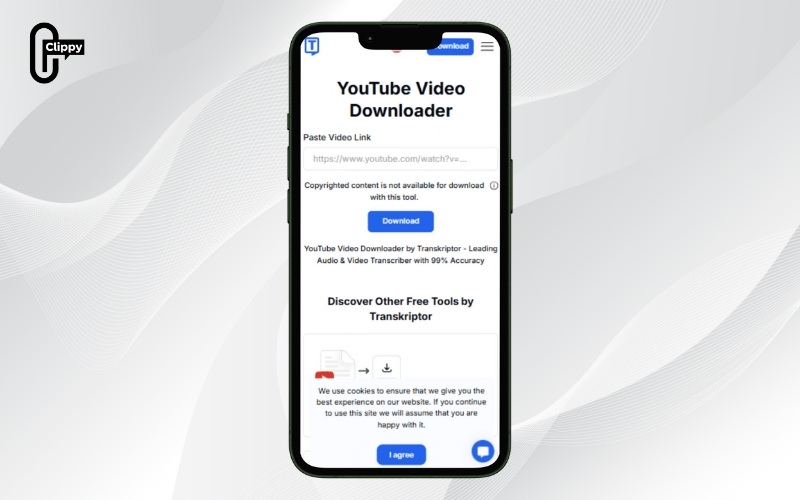
How to download YouTube videos to your phone using Transkriptor
Transkriptor is an online tool and mobile app that not only lets you download YouTube videos but also converts audio into text or subtitles.
- Step 1: Visit the website or install the Transkriptor app on your phone.
- Step 2: Copy the YouTube link and paste it into the input field on Transkriptor.
- Step 3: The system will automatically extract the audio and generate a text transcript or subtitles.
- Step 4: Edit the transcript directly in the built-in editor if needed.
- Step 5: Export your file in various formats such as TXT, DOCX, PDF, or SRT for storage or further use.
Guide to saving YouTube videos on your device with 4K Video Downloader
4K Video Downloader is considered one of the best tools for downloading YouTube videos today. It stands out with its user-friendly interface, fast download speeds, and the ability to save videos without watermarks.
- Step 1: Go to 4kdownload.com to download and install the application.
- Step 2: Open YouTube and copy the link of the video or playlist you want to download.
- Step 3: Launch the 4K Video Downloader app and paste the link into the input box.
- Step 4: Select your desired format (MP4, MKV, MP3, etc.), resolution, and destination folder.
- Step 5: Click Download. The app will display the download progress clearly for you to track.
Downloading YouTube videos straight to your iPhone or Android Device
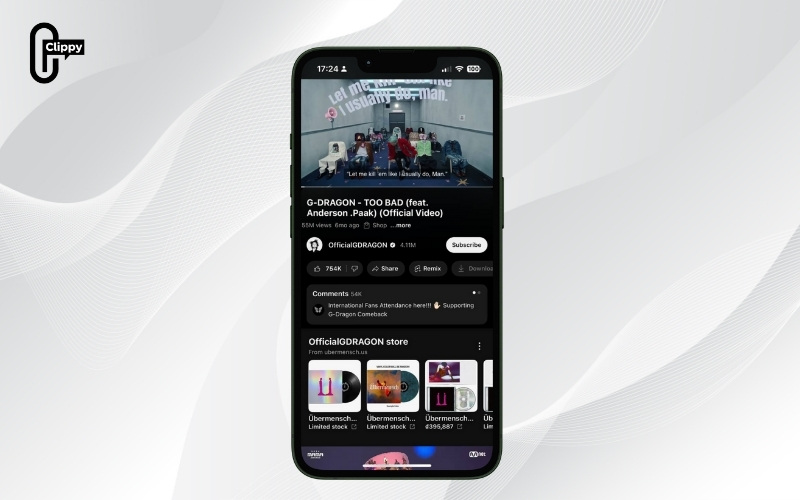
The official YouTube app includes an integrated feature that lets you download videos for offline access easily and safely, regardless of whether you use iOS or Android.
That said, video quality options may be restricted depending on your location and account type, so logging in with your Google account is required. If you want a quick, hassle-free solution that doesn’t involve additional apps or websites, this method is ideal.
Important notes before downloading YouTube videos on your phone
While downloading videos makes offline viewing more convenient, be sure to keep these points in mind first:
- Storage space: Check your phone’s memory, as high-resolution videos take up more space. Choose a lower resolution if you need to save storage.
- Download quality: Full HD offline downloads are only available with a YouTube Premium subscription.
- Internet connection: Make sure your device is connected to a stable network. Using 4G/5G instead of Wi-Fi may consume a large amount of data.
- Copyright rules: Only download and share videos for personal use. Avoid commercial purposes to prevent copyright violations.
- App compatibility: Use tools that match your operating system (iOS or Android) for smooth downloads.
Hopefully, with the 15 methods on how to download YouTube videos to phone shared above, you’ve found the solution that works best for you. Saving your favorite clips for offline viewing not only reduces mobile data usage but also gives you a smoother, more enjoyable entertainment experience.
For the fastest and easiest option, try the Clippy app. Available on both Google Play and the App Store, Clippy lets you download unlimited YouTube, TikTok, Facebook, and Douyin videos in HD completely free, ad-free, and without watermarks. Download Clippy today and make video saving effortless!
>>> See more: Can’t download video from Facebook? Easy ways to fix the error
